Getting started
Everything you need to go from an invite link to your first logged workout. It takes about ten minutes, most of it pasting in workouts you’ve already done.
- 1Create your account2 min
- 2Put it on your home screen1 min
- 3Bring in your existing workouts5 min
- 4Log a workoutat the gym
- 5Ask the coachany time
- 6If something isn’t working
Already made your account? Skip to step 2. If the app is already on your home screen and you’re signed in, go straight to step 3; that’s the part that makes it useful.
Create your account
Next Set is invite-only. Kartik sends you a personal link; that link is your way in.
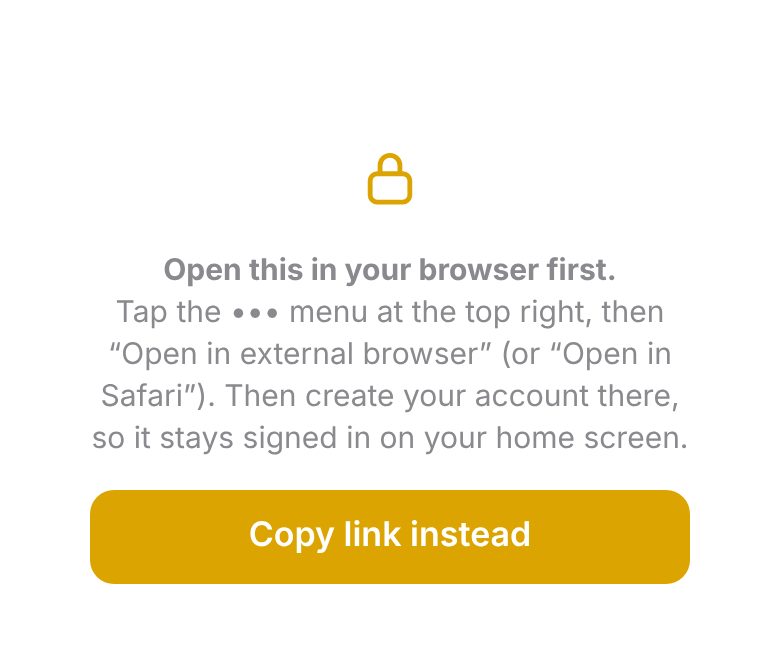
- Tap your invite link.If you tap it inside Instagram, it opens in Instagram’s own browser and shows the screen below. Tap the ••• menu at the top right, then “Open in external browser”. This matters: an account made inside Instagram won’t stay signed in later.
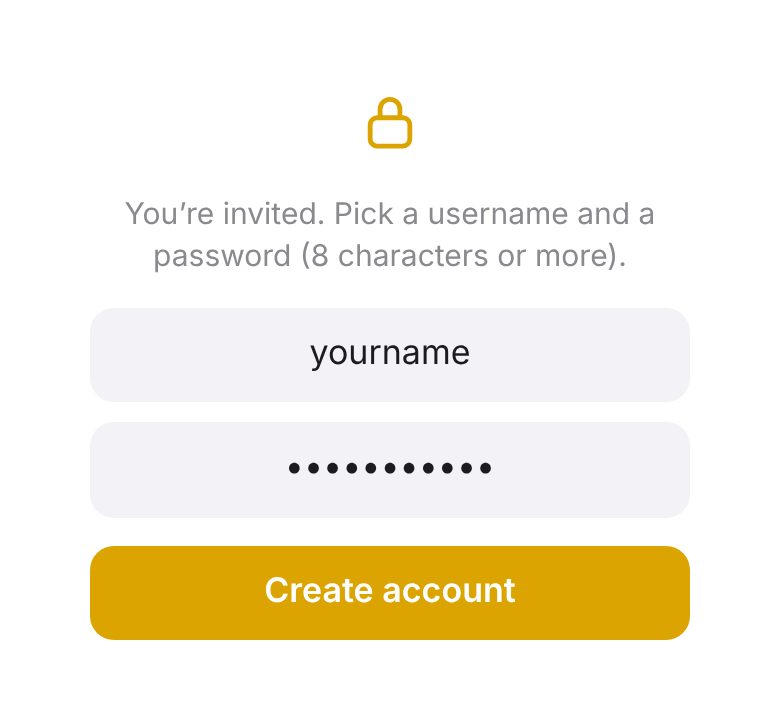
- Pick a username and a password.Username: 3 to 24 letters or numbers. Password: 8 characters or more. There’s no email involved, so choose a password you’ll remember.
- Tap Create account.You’re in. The link has now been used up and won’t work again.
Forgot your password later? There’s no reset button. Message Kartik and he’ll send a fresh link that lets you set a new one. Your notes are kept.
Put it on your home screen
It’s a web page that installs like an app. Nothing to download from a store.
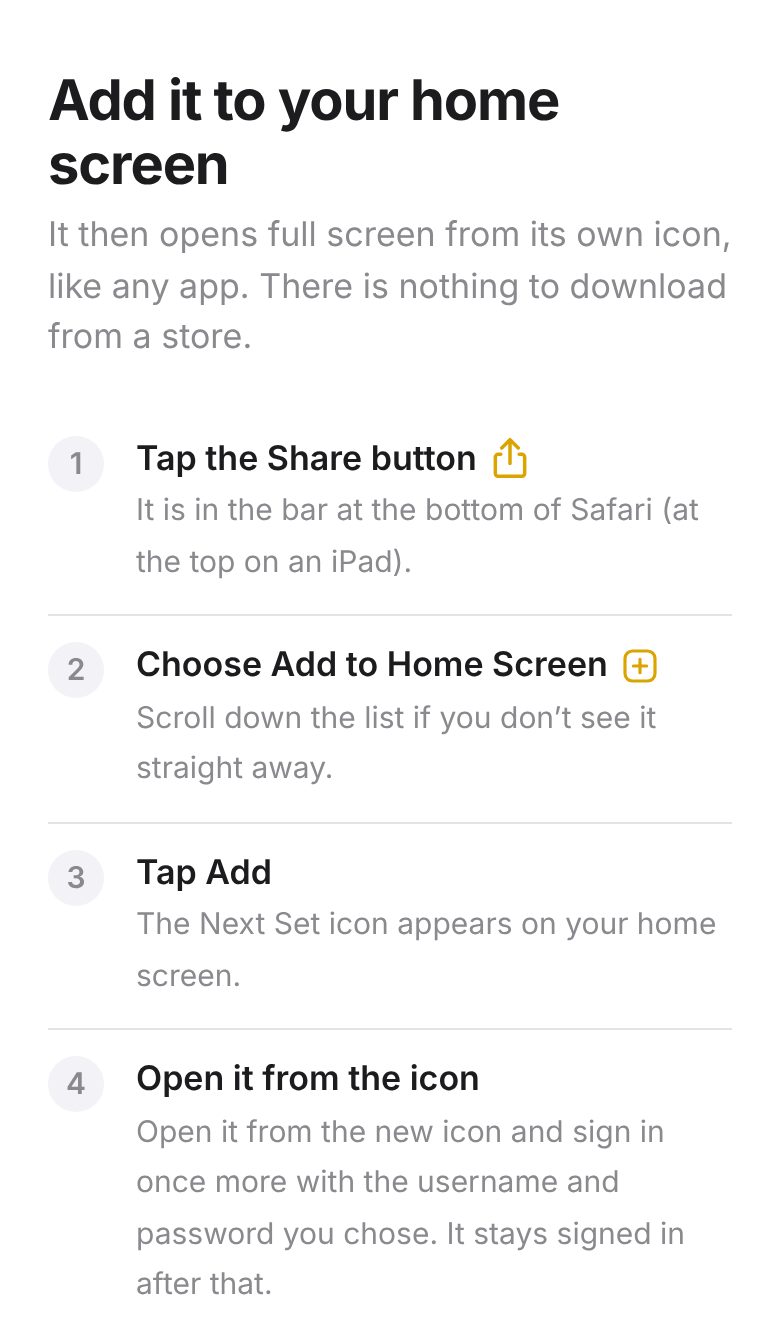
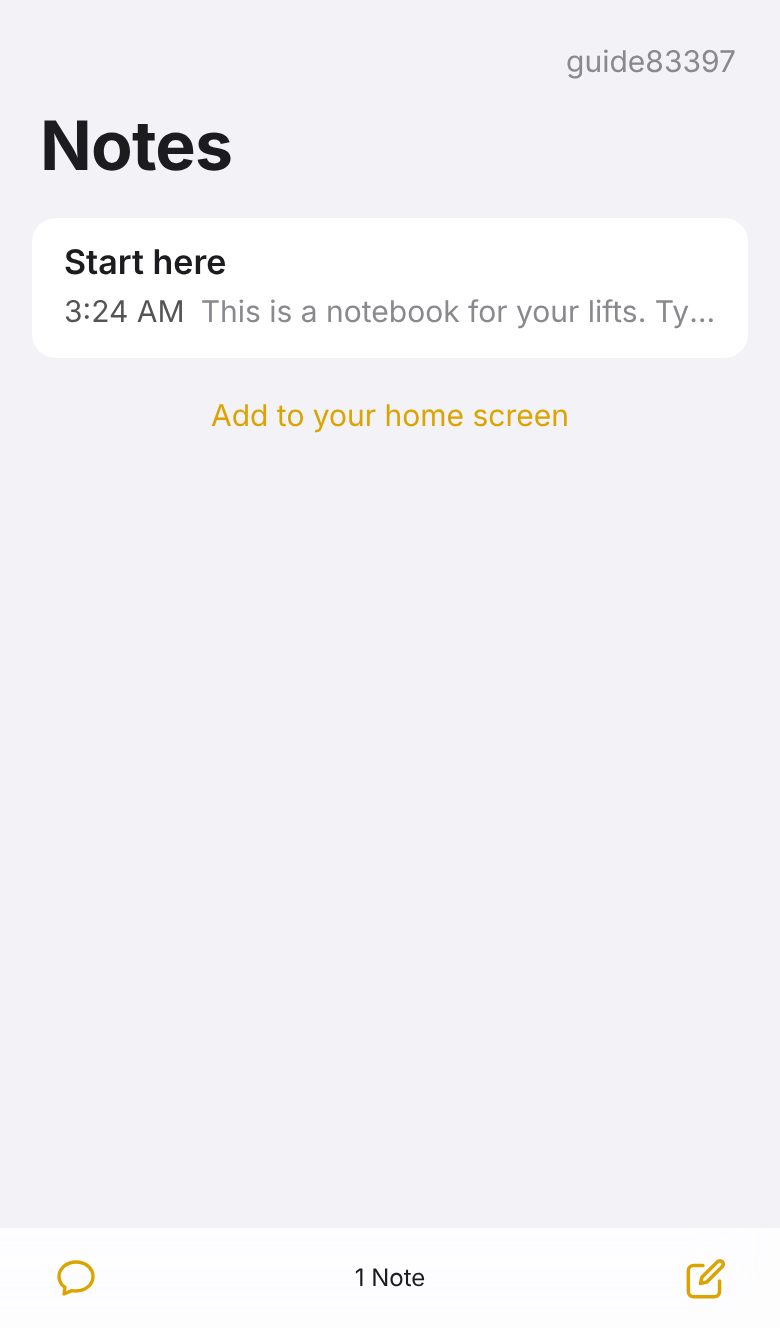
Right after you create your account, the app shows these steps for your phone. If you closed that screen, tap Add to your home screen under your list of notes to see it again.
iPhone
- Open trynextset.app in Safari.
- Tap the Share button The square with an arrow, in the bar at the bottom.
- Choose Add to Home Screen, then Add.Scroll down the list if you don’t see it.
- Open Next Set from its new icon and sign in.The home-screen app doesn’t share Safari’s sign-in, so it asks for your username and password one more time. After that it stays signed in.
Android
- Open trynextset.app in Chrome.
- Tap the ⋮ menu, then Add to Home screen (or Install app).
- Open it from the icon and sign in.
Bring in your existing workouts
This is what makes the suggestions good. The app can only suggest your next session from sessions it can read.
There’s no import button and no file to upload. A workout log here is just a note, so you paste or type your past workouts into a note. One past session is enough to get started; two or three weeks is better.
Do it
- Make a new note.On your list of notes, tap the pencil-and-square button at the bottom right.
- Paste or type your workouts in.Oldest at the top, most recent at the bottom.
- That’s it.It saves by itself as you type. There’s no save button.
Where your workouts are now
- In your phone’s Notes app
- Open the note, press and hold on the text, tap Select All, then Copy. Come back to Next Set, press and hold in your new note, and tap Paste. Most logs work as they are.
- In another workout app, a spreadsheet, or screenshots
- Nothing can be imported from those. Type in your last two or three sessions by hand. It takes a few minutes and is all the app needs.
- In your head
- Type what you remember of your last session for each day you train. Rough numbers are fine; you’ll correct them as you go.
The shape that works best
Nov 10, 2026
Legs

Squats
95 Pounds / 8 Reps / Set 1
95 Pounds / 8 Reps / Set 2
95 Pounds / 7 Reps / Set 3

Hip thrust
135 Pounds / 10 Reps / Set 1
135 Pounds / 10 Reps / Set 2
- Exercise name on its own line, with its sets underneath.
- One set per line, with the weight and the reps.
- A blank line between exercises.
- A name for the day (Legs, Upper, Push) on its own line helps it learn your rotation.
- A date on its own line above each session, if you know it. Not required.
The exact wording doesn’t matter. 95 lbs x 8, 95 x 8, 8, 7 and 43 kg / 8 reps all work. Pounds or kilos are both fine; just stick to one. The suggestions copy whatever format you use.
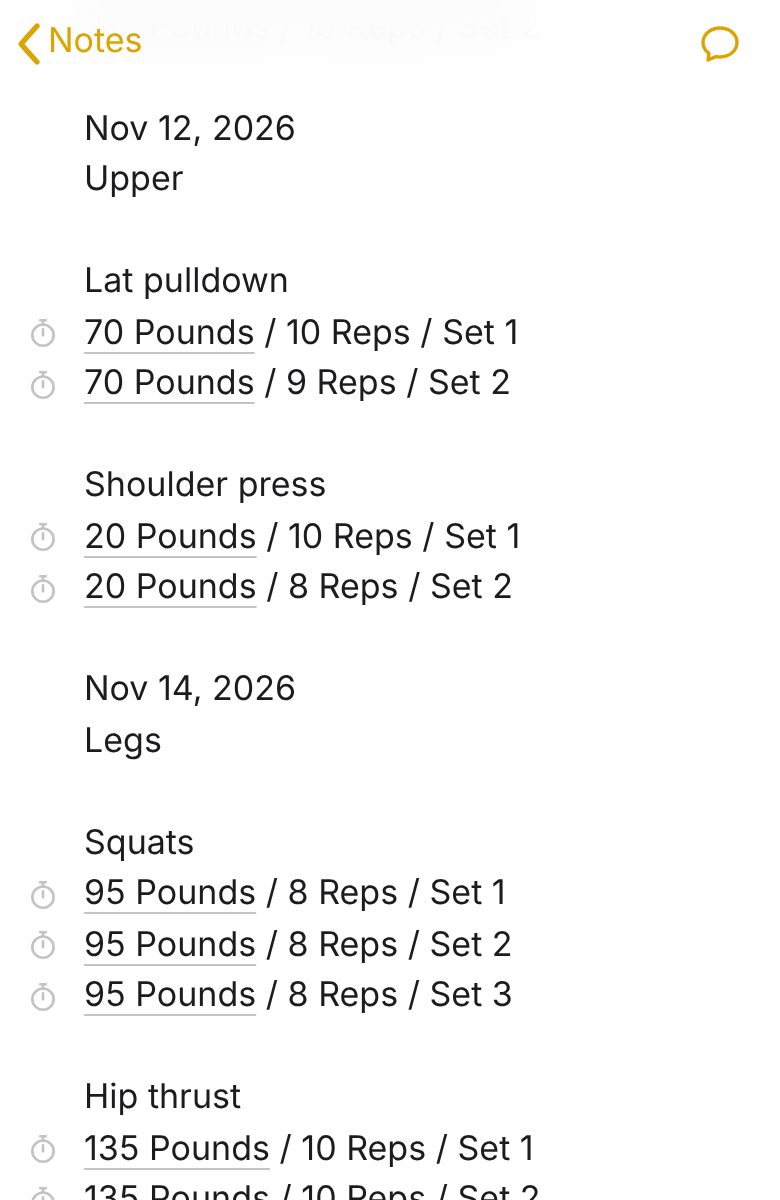
Keep one running log in one note. Add each new workout to the bottom of the same note, like a diary. Suggestions come from the note you’re typing in, so splitting your training across several notes makes them worse.
Log a workout
What you do at the gym, in order.
Get your next session
- Open your log and tap at the very end.
- Leave a blank line and wait.Press return until there’s an empty line above your cursor, then stop typing. In about five to ten seconds your next session appears in grey.
- Tap the grey text to keep it.It turns black and becomes part of your note, with today’s date added above it. If you don’t want it, just keep typing and it disappears.
You can also steer it: type the day you want (for example Legs) or a single exercise name on a new line, and wait. It writes that day or that exercise.
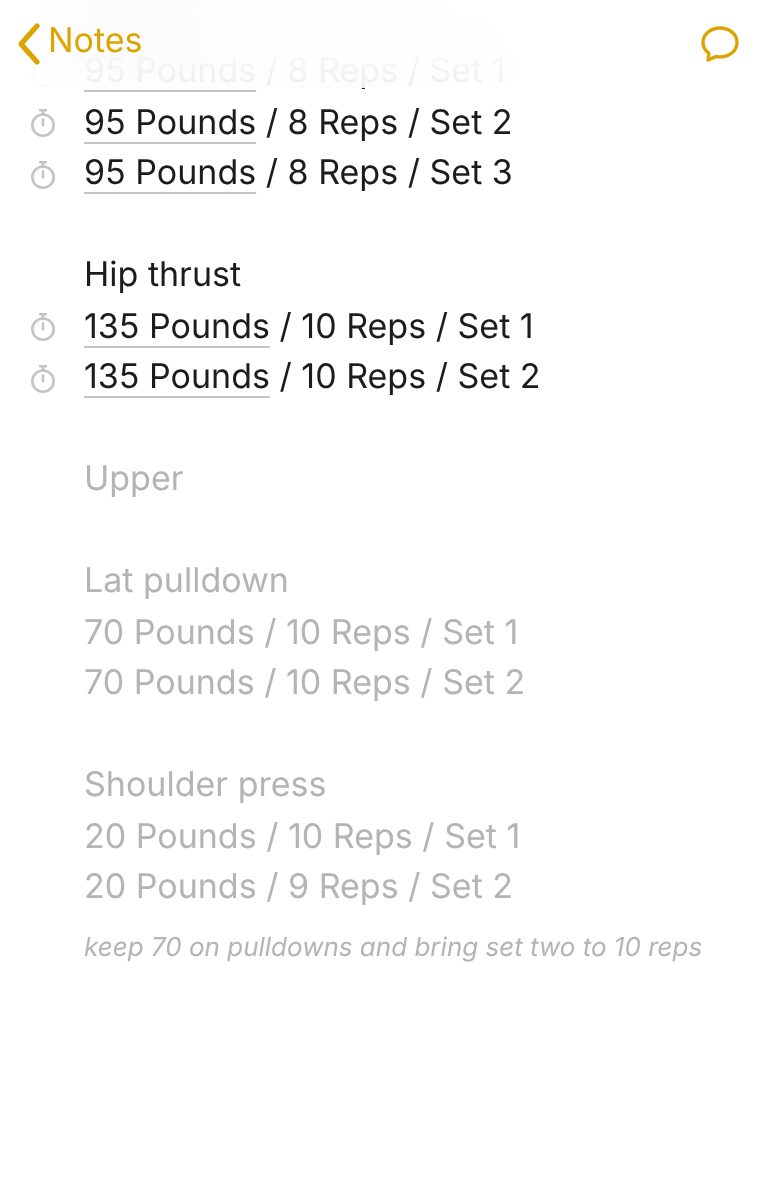
How it picks the numbers: if you hit your reps on every set last time, it adds a little weight. If you fell short, it keeps the weight and asks for one more rep. If you’ve been stuck for a while, it drops the weight slightly so you can build back up.
The grey block is a plan, not a record. As you do each set, change the numbers to what you actually did. The app treats whatever is written in your note as done, so if you leave the plan untouched it will think you hit every rep.
Time your rest
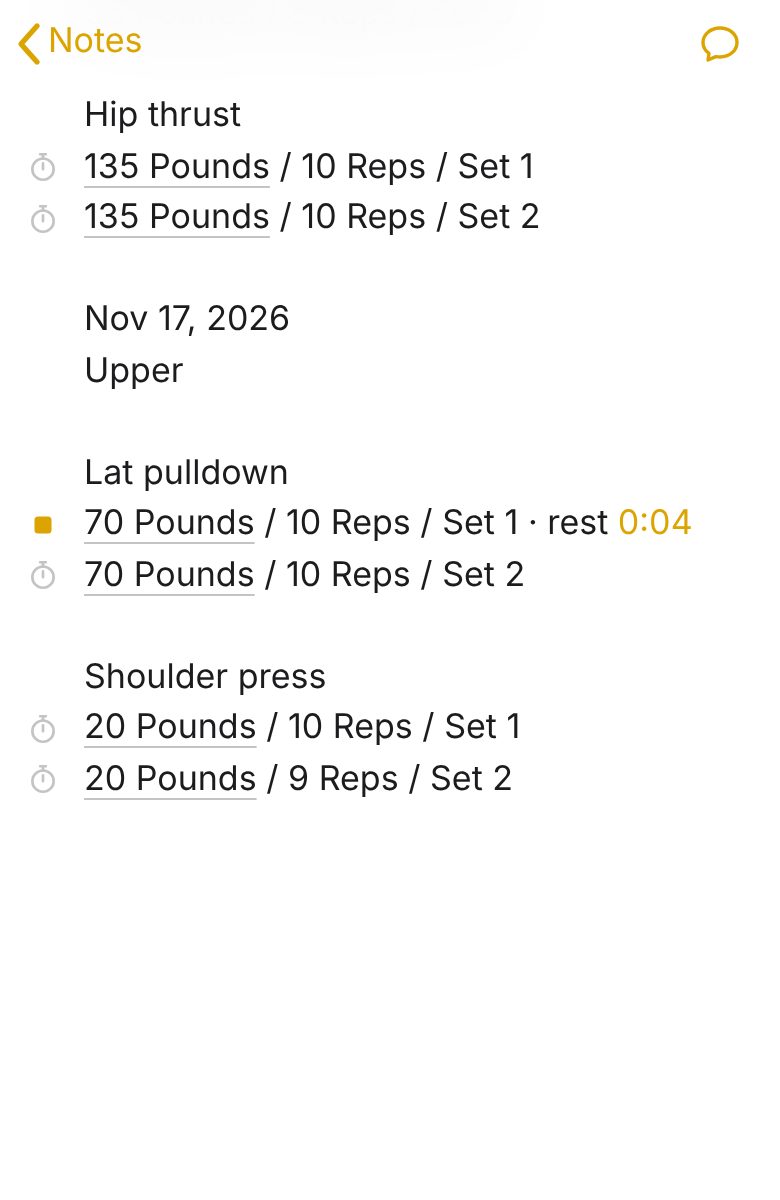
Each set line has a small stopwatch to its left. Tap it when you finish the set. It turns into a gold square and a timer appears at the bottom right of the screen. Tap either one when you start your next set, and the rest is written onto that line, like · rest 2:10. A small × beside a recorded rest removes it.
Cardio intervals
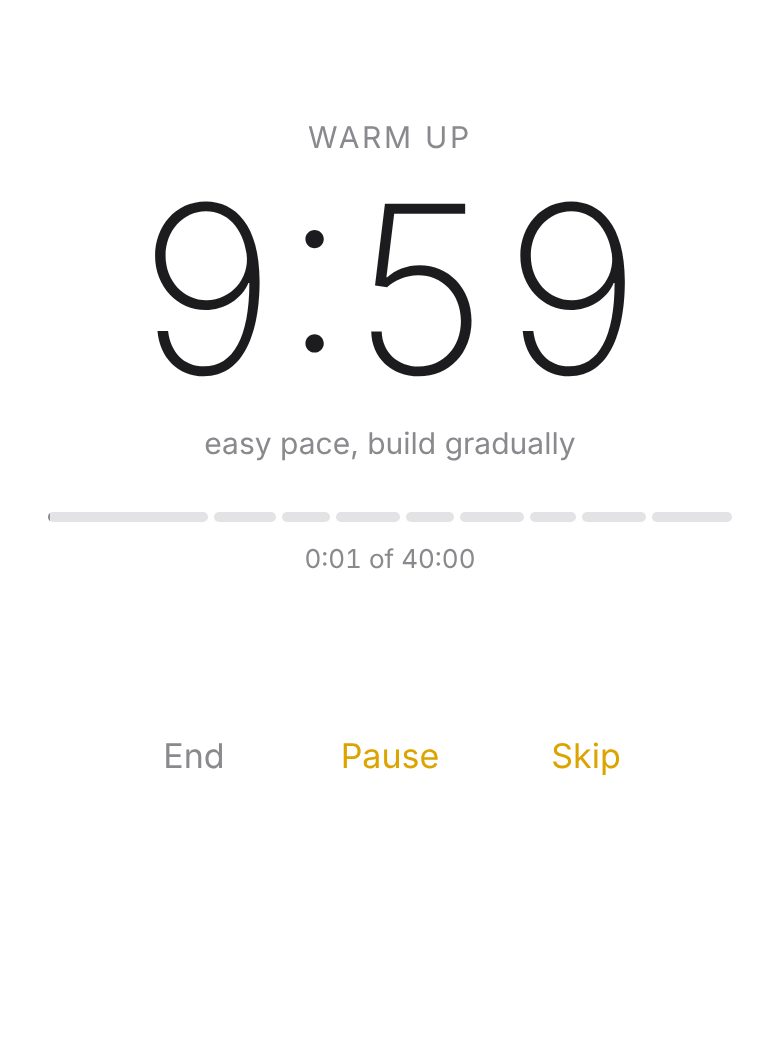
Type 4x4 on its own line and tap the gold play button beside it. A full-screen clock runs a Norwegian 4x4 session: 10 minutes warm-up, four rounds of 4 minutes hard and 3 minutes easy, then a 5-minute cool-down. Skip jumps to the next phase. When you finish, the result is written onto the line. Keep the screen on and the app open while it runs.
Ask the coach
Questions about your own log, answered from your own numbers.
Tap the speech bubble at the top right of a note, or the bottom left of your notes list. A panel opens where you can ask things like:
- Where am I improving?
- Where have I stalled?
- What’s my best set on squats?
- What should I focus on this week?
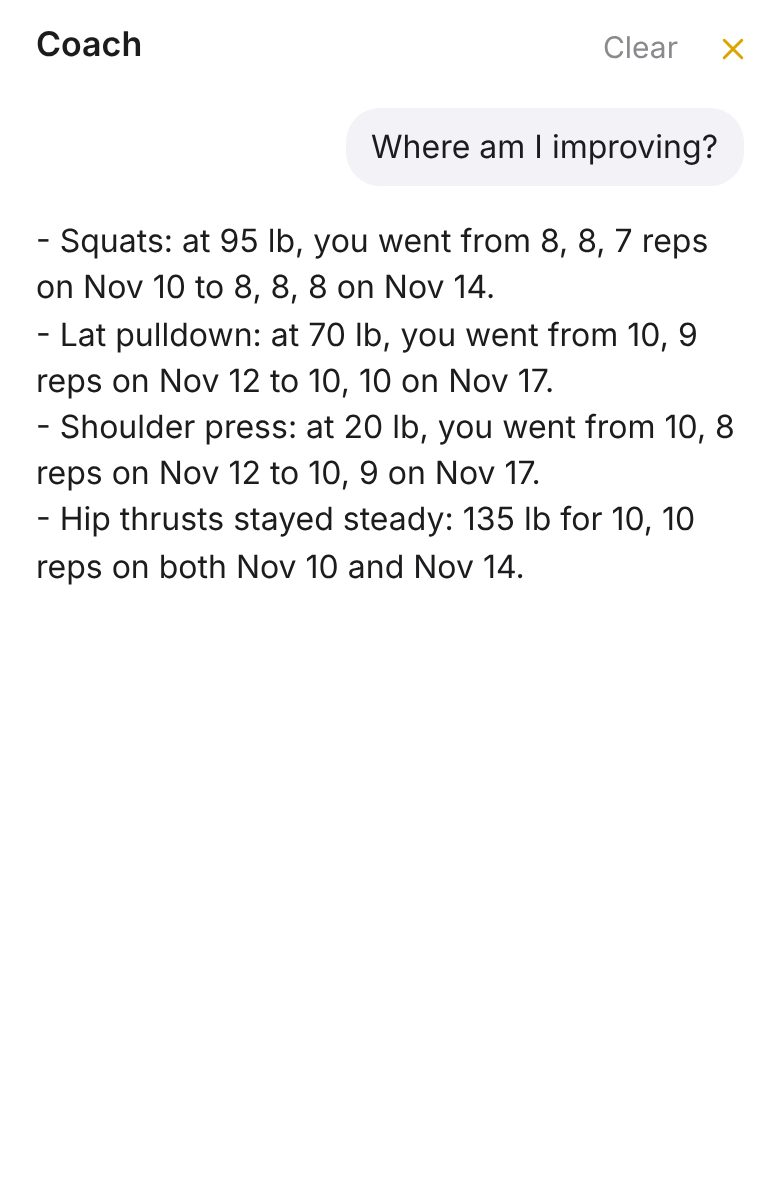
It’s an AI reading your notes, and it does get things wrong, especially “best ever” numbers. Your note is the record; treat the coach as a second opinion.
If something isn’t working
- No grey suggestion appears
- Check three things. Your cursor must be at the very end of the note. There must be an empty line just above it. And the note needs at least one past session with weights and reps in it. Then wait a full ten seconds without typing.
- It says the coach has used this month’s allowance
- Each account has a monthly allowance for AI suggestions and chat. It’s generous, and you’re unlikely to hit it. If you do, your notes, timers and intervals keep working; message Kartik and he can raise it.
- The home-screen app asks me to sign in
- That’s expected the first time. Use the username and password you chose in step 1.
- I want to delete a note
- Erase all of its text and go back to the list. Empty notes are removed automatically.
- I want to sign out
- On your notes list, tap your username at the top right.
- Something looks broken
- It’s early and you’re one of the first people using it. Send Kartik a screenshot; that’s the most useful thing you can do.
Good to know
- Your notes are private to your account. Other users can’t see them.
- To write suggestions and answers, the text of your notes is sent to OpenAI. Don’t put anything in your log you wouldn’t want processed that way.
- Kartik runs the service and could technically access what’s stored on it. He sees how much each account uses the AI, not what’s in your notes.
- The app records how it’s used (which screens and buttons, and a replay of the session) so it can be improved. The text of your notes, anything you type, and the coach’s replies are hidden in those recordings.
- It works on more than one device. Sign in with the same username and password; your notes follow you.